 KaartjeBack to the blog
Create a Trello card with a keyboard shortcut on Mac
By Sulejman, maker of Kaartje ·
Use Kaartje to open a new Trello card from another Mac app. Type your idea, check its destination and save it for later.
You are writing a document when you remember a task for another project. Use a Trello keyboard shortcut on your Mac to put it on the right list. In Kaartje, Control–Option–Space opens the card panel, ready for a title and notes.
Set your Trello keyboard shortcut on Mac
Start with the Kaartje installation guide. Connect your Trello account in the browser, return to Kaartje, and choose a default board and list in Settings. Kaartje runs on macOS 14 or later.
Open Settings… from the Kaartje menu bar icon. Under Quick entry, use the Shortcut control to record a different key combination if you prefer one. Check that another app is not using the same combination.
For example, Trello's own desktop app also offers a customizable Quick Add shortcut. Its Mac App Store listing gives Control–Option–Space as the default. Choose a different shortcut for one app if you run both.
Capture the idea and choose where it goes
- Press your Kaartje shortcut from the app you are working in.
- Enter a title that describes the task.
- Add any detail you will need when you return to it.
- Check the board and list at the bottom of the panel. Change them if this idea belongs somewhere else.
- To add labels, click the tag button. Type in Search labels, select the labels you want and click Done.
- Click Save, or press Return from the title field.
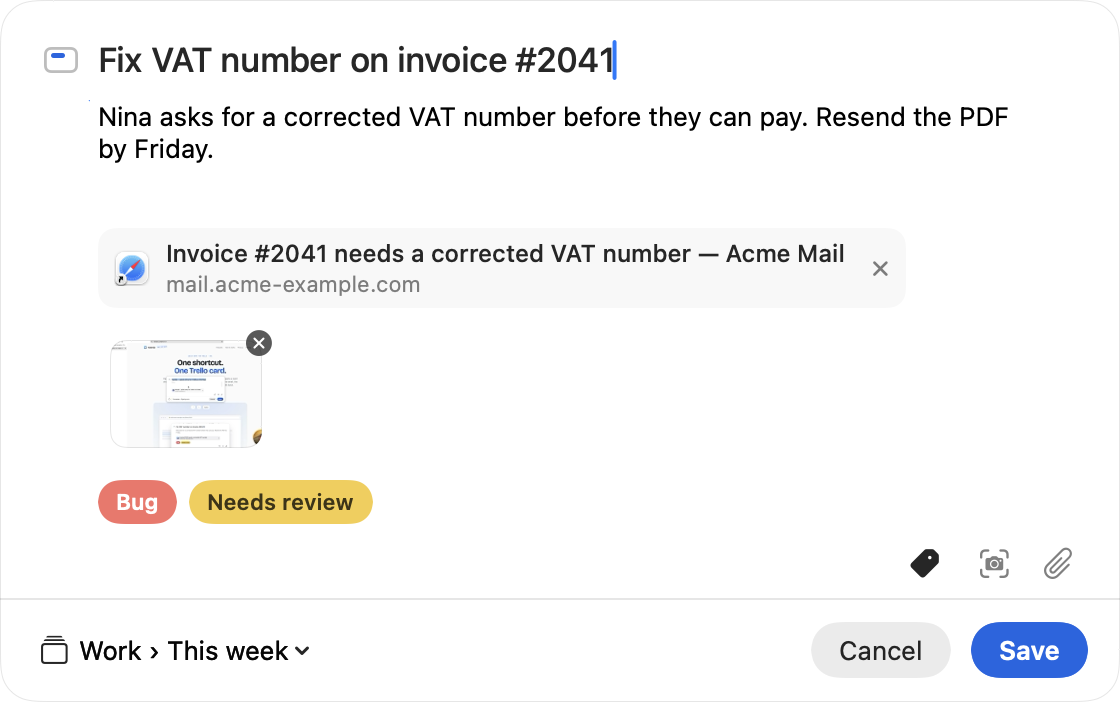
For a small follow-up, "Ask about the revised delivery date" may be enough. For an idea that needs discussion, add the question to the notes and save it to the team's Inbox. Kaartje creates the card when you save.
Choose a blank card or keep the context
Kaartje can start with content from the app you were using. In a supported browser, it can fill in the page title and link. The web-page capture walkthrough explains how to keep that source with a task.
If you want to type every card from scratch, turn off Prefill title and link from the active browser tab and Prefill title from the selected text in Settings. Leave them enabled when the source helps explain the task. Selected-text capture requires macOS Accessibility permission.
Make the shortcut available during your workday
Enable Launch at login in Settings if you want Kaartje to start when you sign in to your Mac. The menu bar icon gives you access to Settings and update checks. If the shortcut does not open the panel, check that Kaartje is running and that another app has not claimed the same keys.
Shortcuts inside a Trello board serve a different task. Atlassian's keyboard shortcut reference covers board navigation and editing. For the broader choice of capture methods, read the guide to adding cards from a Mac.