 KaartjeBack to the blog
Save a web page to Trello on your Mac with one shortcut
By Sulejman, maker of Kaartje ·
Save the page you are reading as a Trello card with Kaartje. Keep the source link and add your next action.
You find a useful article while researching a project. You want to read it later, or turn one detail into a task. To save a web page to Trello on your Mac, open Kaartje over that page. It fills in the tab title and keeps a link back to the source.
Set up your Trello destination once
Install Kaartje on a Mac running macOS 14 or later. Follow the installation and connection steps to connect your Trello account and choose your default board and list. The test version is available for Apple silicon and Intel Macs.
In Kaartje Settings, leave Prefill title and link from the active browser tab enabled. Kaartje can read the active tab in Safari, Chrome, Helium, Brave and Edge. When macOS asks whether Kaartje may control that browser, allow it to read the tab.
Save a web page to Trello from your browser
- Bring the page you want to keep to the front in your browser.
- Press Control–Option–Space to open Kaartje.
- Edit the card title to say what you want to do. The source link stays below the notes.
- Add a note explaining why you saved the page.
- Check the board and list at the bottom of the panel.
- Click Save.
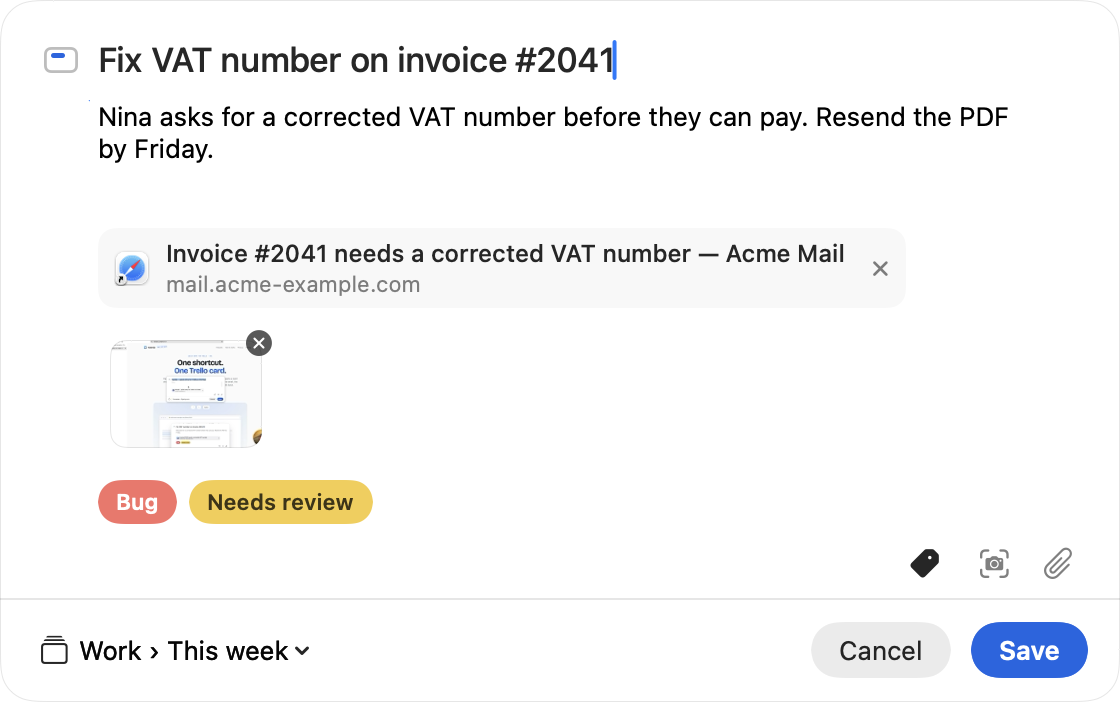
The link appears at the bottom of the card description in Trello. Open the card later and click that link to return to the page. Kaartje saves the address, so you can follow it back to the website.
Give the card a useful next action
For a reading list, a title such as "Read the interview before planning Friday's session" tells you when to return. For project work, change a page title to "Check whether this approach fits the onboarding flow" and put your question in the notes. The link keeps the source next to the action.
You can choose a different destination for each card. For example, save reading material to a Research list and a follow-up task to your team's Inbox. To find a label, click the tag button and type in Search labels. Select one or more labels and click Done. Your selection stays checked while you search for another label.
Keep the title you want
If you have selected text and enabled selected-text capture, Kaartje may use that text as the title instead of the page title. Clear the selection before opening Kaartje if you want the tab title. You can edit the title in the panel before saving.
If the link is missing, check the browser-prefill setting and macOS Automation permission for that browser. You can also paste the address into the notes. For an idea you want to type from scratch, see creating a card with a Mac shortcut.
The overview of Mac card-creation methods compares this workflow with Trello's desktop app and other ways to capture a task.