 Kaartje
← The board
Kaartje
← The board
How to add a Trello card from anywhere on your Mac
 Sulejman, maker of Kaartje · 29 August 2026
You can add a Trello card from your Mac without opening Trello at all. Six ways exist, from Trello's own Quick Add shortcut to a menu bar app that fills the card in for you. I use Trello every day and have tried all of them. This guide compares them on one thing: how much you still have to type after the card appears.
The six ways to add a Trello card on a Mac, compared
| Method | How you start | Fills in for you | Attachments | Labels | Price |
|---|---|---|---|---|---|
| Trello desktop app, Quick Add | ⌃⌥Space | Nothing; you type the title | No | No | Free |
| Kaartje (menu bar app) | ⌃⌥Space, or your own shortcut | Tab title and URL, mail subject with a link back, selected files, selected text | Screenshots, files, pasted images | Yes, remembers last used | €9.99 once |
| Send to Trello bookmarklet | Click a bookmark in the browser | Page title and URL | No | No | Free |
| Email-to-board | Forward a mail | Subject as title, body as description | The mail itself, plus its attachments | Via #hashtags in the subject | Free |
| Raycast or Alfred | Launcher, type a command | What you type | No | No | Free extension |
| Zapier, Make, Apple Shortcuts | A trigger you set up | Whatever the automation maps | Depends | Depends | Free tier, then paid |
1. Trello's desktop app and the Quick Add shortcut
The Trello desktop app for macOS adds a menu bar item and a Quick Add window. Press ⌃⌥Space in any app and a small window asks for a title, a board and a list. Press return and the card is on the board.
- Install the Trello app from the Mac App Store and sign in.
- Open the app's settings (the gear icon, top right) and turn on the Quick Add shortcut. Change the key combination there if you want.
- Press the shortcut from any app, type the title, choose board and list, press return.
This is the right choice when a title is all you need. The window takes no description, no attachment and no labels, and it does not look at the app you came from. The link to the page you were reading, the mail you were answering, the file you had selected: you add those later, on the board.
2. Kaartje: the card arrives already filled in
I built Kaartje because step three above was always the same routine: copy the link, open the card, paste, go back. Kaartje is a menu bar app. You press a shortcut and the card comes up with the content of the app you were in:
- Safari, Chrome, Arc, Brave, Helium and other Chromium browsers: the tab title as the card name, the URL on the card.
- Mail: the subject, the sender, and a
message://link that reopens the mail from Trello. - Finder: the files you selected, attached to the card.
- Any app: the text you selected becomes the title, or the description when it is long.
You then pick the board and list (or keep your default), toggle labels in your board's own colours, take a screenshot with ⌘⇧S if the card needs one, and press return. Focus goes back to the app you came from.
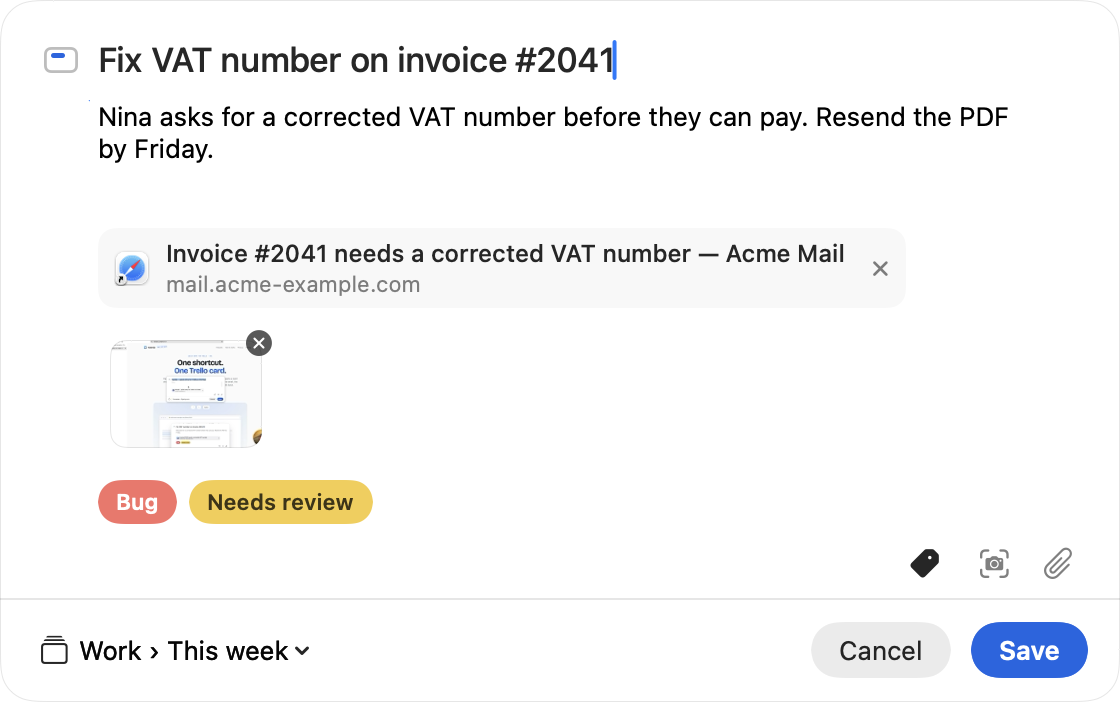
Kaartje costs €9.99 once and runs on macOS 14 or later. It is not on sale yet; the first 50 testers get a free licence.
3. The Send to Trello bookmarklet
Trello has offered a bookmarklet at trello.com/add-card for years. Drag the "Send to Trello" link to your bookmarks bar. On any web page, click it: a popup opens with the page title as the card name and the URL in the description, and you choose a board and list.
It only works inside the browser, and it only knows about web pages. Reports on the Atlassian Community show it failing in some browsers, so test it in yours before you rely on it. It is free and takes a minute to set up.
4. Email a card to your board
Every Trello board has an email address, and so does your Trello Inbox. Forward a mail to [email protected] from the address you use for Trello, or to a board's own address (board menu, "Email-to-board settings"). The subject becomes the card title, the body the description, and Trello attaches the original email to the card.
Labels work through hashtags in the subject line, so "Invoice #2041 #bug" lands with the Bug label. This is the best route when the email itself is the thing you want on the board, and when you are working from a phone. From a Mac it is slower than a shortcut: you compose, address, send and wait for the card to appear.
5. Raycast or Alfred
If you already live in a launcher, the Trello extension for Raycast creates a card on a board and list from the Raycast window. Setup asks for a Trello API key, a token and your username. Alfred has community workflows that do the same through the Trello API.
These are fast for a card you dictate from memory. They do not read the app you were in, so links and attachments are still manual.
6. Automations: Zapier, Make, Apple Shortcuts
For cards that follow a rule (every starred mail, every new row in a sheet, every form entry), an automation beats any shortcut. Zapier and Make both have Trello actions with a free tier. Apple Shortcuts can call the Trello API with a "Get contents of URL" action if you are comfortable with an API key.
Automations are the wrong tool for the one-off card you think of while reading something. Setting one up takes longer than a hundred manual cards.
Which one should you use?
Title only, no budget: the Trello desktop app's Quick Add. Web pages only, free: the bookmarklet. The email is the card: email-to-board. You already use Raycast: its Trello extension. You want the page, mail or file you are looking at on the card without the copy-and-paste, plus labels and screenshots: Kaartje.
Two of these can share a Mac without getting in each other's way. Trello's Quick Add and Kaartje both default to ⌃⌥Space, so change one of the two shortcuts if you keep both.
Questions
What is the Trello quick add shortcut on Mac?
In the Trello desktop app, ⌃⌥Space (Control, Option and Space) opens the Quick Add window from any app. You type a title and pick a board and list. The shortcut can be changed in the app's settings.
Can I add a Trello card without opening Trello?
Yes. The desktop app's Quick Add window, a menu bar app such as Kaartje, the Send to Trello bookmarklet and email-to-board all create cards without opening a board.
How do I add a web page to Trello from my Mac?
Use the Send to Trello bookmarklet, or a menu bar app that reads the current tab. Kaartje takes the tab title and URL from Safari, Chrome and other Chromium browsers when you press its shortcut. Firefox does not expose the current tab to other apps.
Can I create a Trello card from an email on a Mac?
Forward the email to [email protected] or to your board's address; Trello attaches the original mail to the card. Kaartje reads the selected message in Apple Mail instead and puts the subject, the sender and a link that reopens the mail on the card.